Guide
Best Personal Budget Templates for 2026 (Free & Paid)
By Dr. Alex Chen · Updated 2026-03-10
By Emma Walsh, Certified Financial Planner · Last updated March 10, 2026
The best personal budget template for most people is the 50/30/20 Google Sheets budget — it auto-calculates your allocations, connects to bank data via Google Sheets imports, and takes under 15 minutes to set up. It's free, flexible, and trusted by over 2 million users worldwide.
Table of Contents

- Top 5 Budget Templates Compared
- Best Free: 50/30/20 Google Sheets Budget
- Best Excel: Microsoft Money in Excel
- Best Notion: Notion Budget Planner
- Best Paid: YNAB (You Need a Budget)
- Best Zero-Based: EveryDollar Template
- How to Choose the Right Budget Template
- Budget Template Setup Guide
- FAQ
- Sources
Top 5 Budget Templates Compared {#comparison}
| Template | Platform | Price | Best For | Setup Time | Automation |
|---|---|---|---|---|---|
| 50/30/20 Google Sheets | Google Sheets | Free | Beginners | 15 mins | Bank import |
| Money in Excel | Excel | Free (Microsoft 365) | Excel users | 20 mins | Auto-sync |
| Notion Budget Planner | Notion | Free/Paid | Visual planners | 30 mins | Manual |
| YNAB | Web/App | $14.99/mo | Zero-based budgeters | 45 mins | Full auto |
| EveryDollar | Web/App | Free/$17.99/mo | Dave Ramsey fans | 30 mins | Premium only |
Best Free: 50/30/20 Google Sheets Budget {#5030-20}
The 50/30/20 method allocates 50% of after-tax income to needs, 30% to wants, and 20% to savings and debt repayment. Google's free template implementation is the cleanest version available, with automatic category calculation and colour-coded progress bars.
What makes it the best free option: It requires zero financial knowledge to start. Input your monthly income, then categorise each expense as a need, want, or savings item. The template does everything else — calculates percentages, highlights overspending in red, and generates a monthly summary chart.
The Google Sheets platform means you can access it on any device, share it with a partner, and use Google's built-in formulas without knowing how to write them. For couples budgeting together, the simultaneous editing feature is invaluable.
Pros:
- Completely free with a Google account
- Works on any device including mobile
- Real-time collaboration for couples
- Automatic percentage calculation
- Monthly summary charts built in
- Template gallery offers 12+ variations
Cons:
- Manual expense entry (no automatic bank sync without third-party tools)
- Limited reporting compared to paid apps
- Requires Google account
- Can get slow with 12+ months of data in one sheet
Best for: Budget beginners, students, anyone wanting a zero-cost starting point.
Best Excel: Microsoft Money in Excel {#money-excel}
For Microsoft 365 subscribers, Money in Excel is the most powerful spreadsheet-based budgeting tool available. It connects directly to your bank accounts, credit cards, and investment accounts, pulling transactions automatically every time you open the sheet.
The Power Query integration means you can slice spending data any way you need — by merchant, category, date range, or account. The built-in charts update automatically and the net worth tracker updates daily with market prices if you hold investments.
Pros:
- Automatic bank sync via Plaid integration
- Investment account tracking included
- Advanced pivot table reporting
- Works offline unlike Google Sheets
- Powerful custom formula support
- Net worth dashboard built in
Cons:
- Requires Microsoft 365 subscription (~$10/month)
- Plaid bank connection occasionally breaks
- Steeper learning curve than Google Sheets
- US bank connections only (no international support)
- Not available on non-Microsoft devices without web version
Best for: Power users, Excel-comfortable professionals, anyone who wants automatic bank sync without a full app subscription.
Best Notion: Notion Budget Planner {#notion}
Notion budget planners combine financial tracking with life organisation in one workspace. The best community templates include linked databases that connect your budget to your goals, habits, and projects — making money management part of a broader personal system.
The visual appeal of Notion budgets is unmatched. Kanban views for financial goals, calendar views for bill due dates, and gallery views for spending categories make budgeting feel less like a chore.
Pros:
- Highly visual and customisable
- Integrates with broader life management system
- Free tier covers basic budgeting needs
- Active template community with free downloads
- Cross-platform including mobile
- Linked databases connect goals to budget progress
Cons:
- No automatic bank sync (fully manual)
- More setup time than spreadsheet alternatives
- Can become bloated if over-customised
- Offline mode limited on free plan
- Notion AI add-on costs extra
Best for: Visual thinkers, Notion users, people who want budgeting integrated with life planning.
Best Paid App: YNAB (You Need a Budget) {#ynab}
YNAB is the gold standard of budgeting apps. Its zero-based budgeting philosophy — giving every dollar a job before you spend it — has helped users pay off an average of $6,000 in debt and save $3,000 in their first year, according to YNAB's own user data.
At $14.99/month ($99/year), it's the priciest option but the ROI is typically positive within the first 3 months for active users.
Pros:
- Most effective methodology for debt elimination
- Automatic bank sync across 12,000+ institutions
- Excellent mobile app (iOS and Android)
- Strong educational resources and community
- 34-day free trial (no credit card required)
- Goal tracking with projected completion dates
Cons:
- Most expensive at $99/year
- Requires mindset shift to zero-based budgeting
- Learning curve steeper than simple templates
- Overkill for simple income/expense tracking
- Monthly subscription required (no one-time purchase)
Best for: Serious budgeters, debt elimination, couples, anyone struggling to make budget templates stick.
Best Zero-Based Free Option: EveryDollar {#everydollar}
EveryDollar is Dave Ramsey's budgeting app and template system. The free version is a functional zero-based budget where you manually assign every dollar. The paid Ramsey+ version ($17.99/month) adds bank sync.
The free template is genuinely the best free zero-based budget available, especially if you follow the Baby Steps debt payoff method.
Pros:
- Best free zero-based template
- Simple, clean interface
- Dave Ramsey Baby Steps integration
- Free version covers core budgeting
- Good mobile app for on-the-go tracking
Cons:
- Bank sync requires paid subscription
- Interface is opinionated toward Baby Steps method
- Less flexible than YNAB for custom categories
- Limited reporting in free version
Best for: Dave Ramsey followers, zero-based budget beginners, debt snowball practitioners.
How to Choose the Right Budget Template {#how-to-choose}
Start With Your Pain Point
"I spend but don't know where it goes" → 50/30/20 Google Sheets. Automatic categorisation shows spending patterns immediately.
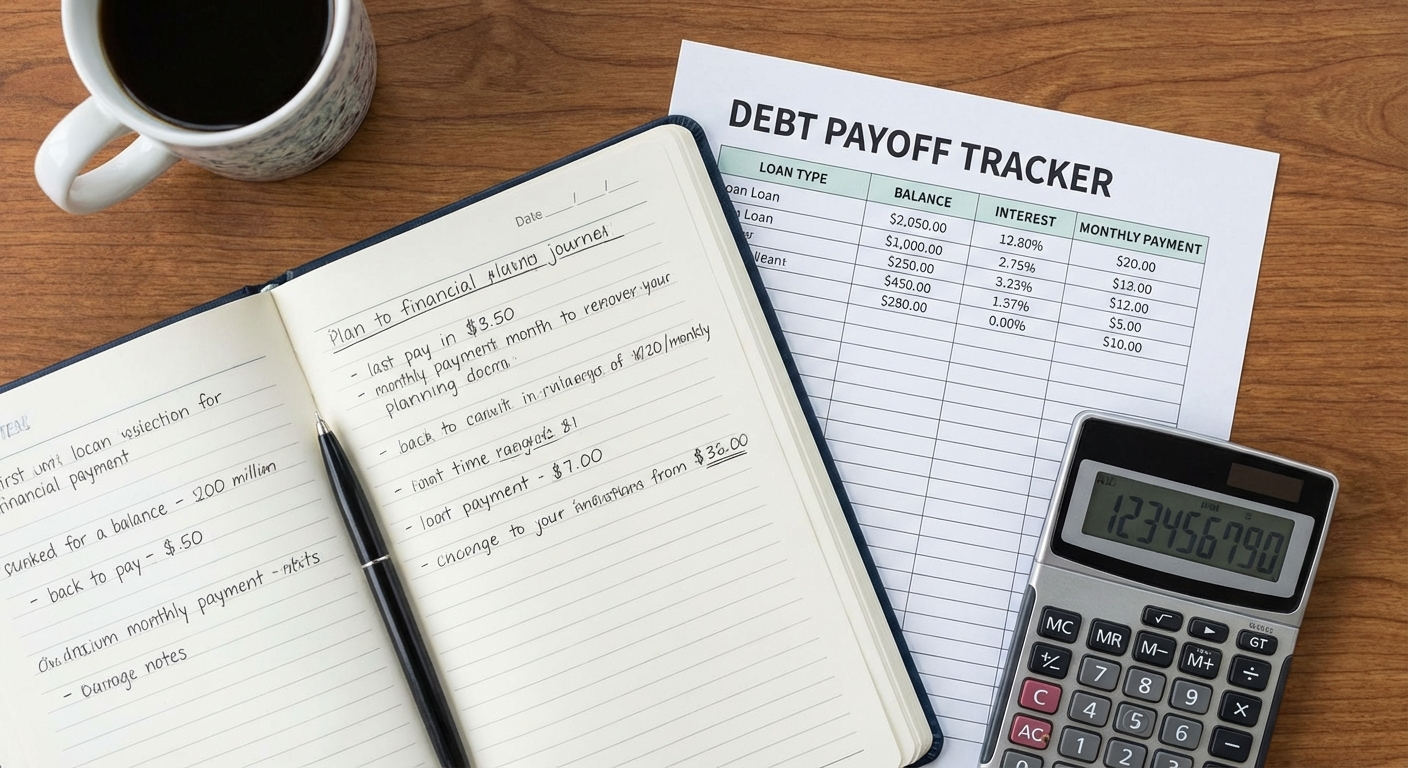
"I'm in debt and need a payoff plan" → YNAB or EveryDollar. Zero-based budgeting is proven for debt elimination.
"I want everything in one place" → Notion Budget Planner. Integrates finance with goals and habits.
"I'm an Excel power user" → Money in Excel. Most powerful data analysis capability.
Beginner vs Advanced
New budgeters should start with Google Sheets or EveryDollar. Complexity is the enemy of consistency. A simple template you actually use beats a sophisticated one you abandon after 2 weeks.
Advanced users who want deep analytics and automatic sync should invest in YNAB or Money in Excel.
Partner Budgeting
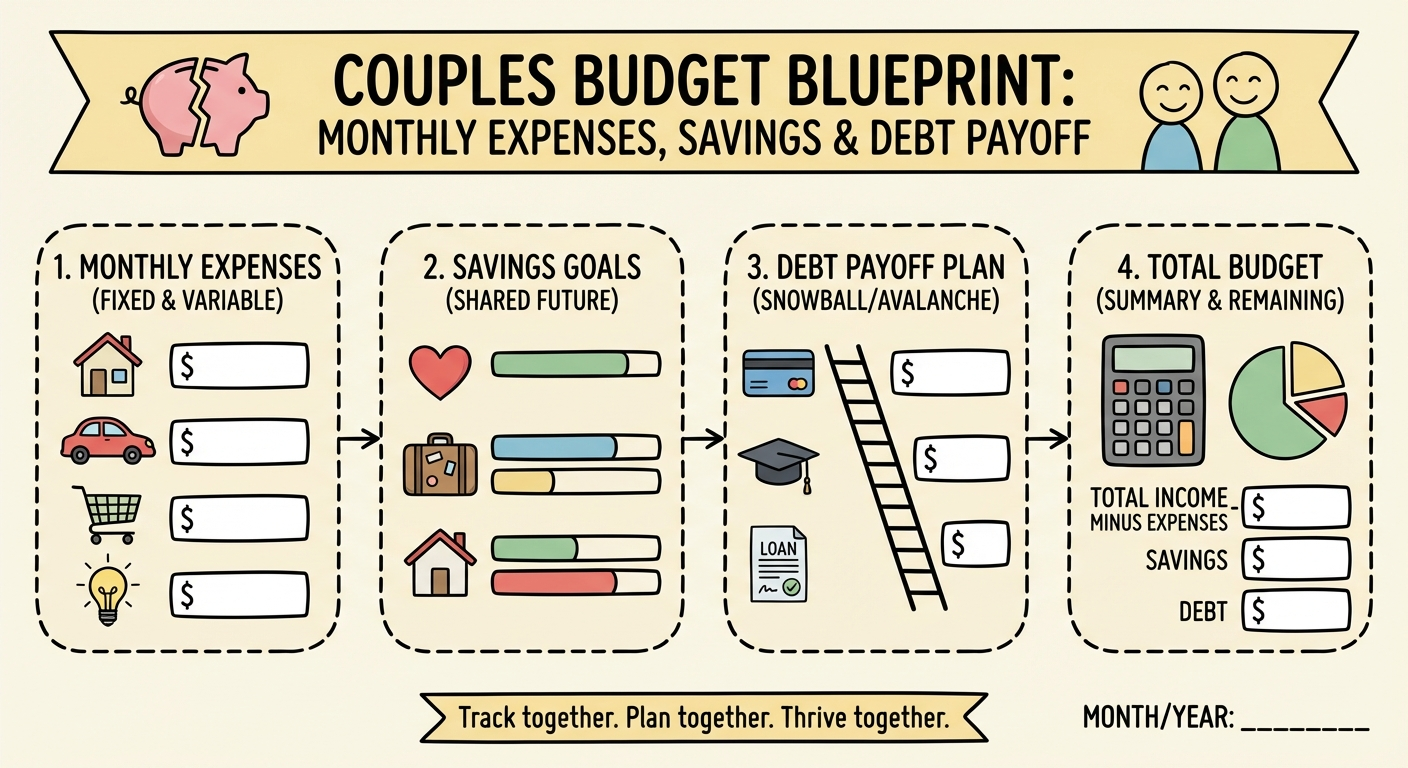
For couples, real-time collaboration is essential. Google Sheets and Notion both allow simultaneous editing. YNAB has a shared account feature specifically for couples.
Template vs App
Spreadsheet templates offer maximum flexibility and control. Apps offer automation and better mobile experience. If you'll primarily budget on mobile, use an app. If you want to customise every aspect, use a template.
Budget Template Setup Guide {#setup-guide}
Setting up any budget template follows the same four-step process:
Step 1: Calculate your net monthly income Sum all after-tax income sources: salary, freelance, side income, rental income. Use average monthly figures for variable income.
Step 2: List all fixed expenses These are non-negotiable monthly costs: rent/mortgage, utilities, insurance, subscriptions, minimum debt payments. Enter exact amounts.
Step 3: Estimate variable expenses Use last 3 months of bank statements to calculate average spending on food, transport, entertainment, clothing, and personal care. Round up by 10-15% to create buffer.
Step 4: Assign the remainder Whatever remains after fixed and variable expenses is your savings and discretionary allocation. Assign a purpose to every dollar before the month begins.
FAQ {#faq}
What is the best free budget template? The 50/30/20 Google Sheets budget is the best free template for most people. It's easy to set up, auto-calculates allocations, works on any device, and allows partner collaboration. Available free via Google Sheets template gallery.
Should I use Excel or Google Sheets for budgeting? Google Sheets for most people — it's free, accessible anywhere, and allows real-time collaboration. Excel is better if you're a power user who wants advanced pivot tables, works offline regularly, or already pays for Microsoft 365.
How long does it take to set up a budget template? A basic template takes 15-20 minutes to set up. Allow 45-60 minutes for a comprehensive setup including importing 3 months of historical transactions for accurate expense estimates.
Are paid budget apps worth it over free templates? For people serious about debt elimination or building wealth, yes. YNAB users save an average of $600 in their first two months — ROI on the $99/year subscription is typically positive within weeks. Free templates work well for tracking but lack the behavioural prompts that paid apps use to change spending habits.
Can I share a budget template with my partner? Yes, easily with Google Sheets or Notion (both have real-time collaboration). YNAB has a couples feature. Excel requires OneDrive sharing. Sharing a budget is strongly recommended for couples — joint budgeting reduces financial conflict and improves savings rate.
How often should I update my budget template? Ideally weekly — 10 minutes every Sunday reviewing the past week catches overspending before it compounds. Monthly budget reviews (30-45 minutes) are essential to adjust categories, review goals, and plan for irregular upcoming expenses.
Sources {#sources}
- YNAB State of Budgeting Report 2025 — internal user data on average debt payoff and savings in year 1
- Bureau of Labor Statistics Consumer Expenditure Survey 2024
- Federal Reserve Report on the Economic Well-Being of U.S. Households 2024
- Klontz B et al. (2011). "Money Beliefs and Financial Behaviors." Journal of Financial Therapy.
The Psychology of Budgeting: Why Templates Fail and How to Fix It
Most budget templates don't fail because of math — they fail because of behaviour. Understanding the psychological barriers helps you choose a template that matches your personality.
Why People Abandon Budget Templates
Perfectionism: Starting fresh each month after one bad week. The fix: treat budget categories as averages over 3 months, not strict weekly limits.
Complexity paralysis: Using a 47-tab spreadsheet when you need 5 categories. The fix: start with the 50/30/20 method — maximum 3 categories.
No accountability: Solo budgeting without check-ins. The fix: weekly 10-minute partner review or accountability app like Copilot.
Punishment mindset: Treating budgeting as restriction. The fix: every budget entry is a decision to align money with values, not a record of failure.
Building a Budgeting Habit
Research shows budgeting becomes habitual within 21-66 days of consistent practice. The key is making the weekly review as frictionless as possible:
- Set a recurring calendar block (Sunday 8pm works well for most people)
- Have the template open in a pinned browser tab
- Keep the review to under 15 minutes — longer reviews breed avoidance
- Celebrate wins: note one positive financial decision from the week
Automating to Remove Willpower Dependency
The most successful budgeters automate everything possible:
- Savings: Automatic transfer on payday to a separate high-yield account
- Bills: Direct debit for all fixed expenses
- Investments: Recurring buys in index funds on payday
What remains in your main account is genuinely available to spend — no mental accounting required.
Template Customisation Tips
Categories That Actually Work
Generic templates use categories like "Entertainment" and "Miscellaneous." These are budget black holes. Replace them with specific categories matching your actual life:
Instead of "Eating Out" → "Coffee shops," "Work lunches," "Date nights," "Takeaway"
Granular categories reveal patterns. Most people discover 1-3 specific spending habits they were unaware of within the first month.
Handling Irregular Expenses
Annual and semi-annual expenses destroy monthly budgets. The solution: calculate annual totals, divide by 12, and fund a sinking fund each month.
| Expense | Annual Cost | Monthly Fund |
|---|---|---|
| Car registration | $600 | $50 |
| Home insurance | $1,200 | $100 |
| Holidays | $3,000 | $250 |
| Christmas gifts | $800 | $67 |
| Medical/dental | $600 | $50 |
Add a "Sinking Funds" category to your template and never be surprised by these expenses again.
Downloading and Using Your Budget Template
Google Sheets: Step-by-Step
- Go to sheets.google.com → Template Gallery → Personal → Monthly Budget
- Click "Use Template" — creates a copy in your Google Drive
- Update the income row with your actual monthly take-home pay
- Review and adjust default expense categories to match your spending
- Enter your first month's transactions (import from bank statement CSV for speed)
Excel: Step-by-Step
- Open Excel → New → search "personal budget" in template search
- Download "Family Budget" or "Monthly Budget" — both are solid
- Enable macros if prompted (required for automatic calculations)
- Connect to bank via File → Get Data → From Online Services → Plaid (Microsoft 365 required)
- Set up automatic monthly data refresh
Making Your Template Last
The number one reason people stick with budget templates: they see progress. Add a net worth tracker alongside your monthly budget. Watching net worth grow — even by $50/month — creates the motivation to continue.
A simple net worth tracker needs only two columns: Assets (savings, investments, property value) and Liabilities (loans, credit card balance, mortgage). Update it monthly. The trend line matters more than the number.
The best budget template is ultimately the one you'll actually use consistently. Start simple, build the habit, then add complexity as needed. Every financial journey starts with knowing where your money goes — a budget template makes that visible in minutes.